How to Use the Live Seat Map Feature
Last modified on
Choosing the right seat can make or break your flight experience. AwardTool offers a powerful Live Seat Map feature to help you preview seat availability, find the best spots, and avoid undesirable seats before you even start the booking process.
There are two primary ways to access the Live Seat Map: using the dedicated standalone tool or directly from your flight search results.
Method 1: Using the Dedicated Seat Map Tool (PRO Feature)
If you already know your flight details and just want to check the cabin layout and current seat availability, you can use our dedicated standalone tool.
Note: The standalone Live Seat Map tool is an exclusive feature for PRO members.
Step 1: Navigate to the Tools Menu
From the main navigation bar at the top of the screen, click on the Tools tab. A dropdown menu will appear. Select Live Seat Map from the list of options.
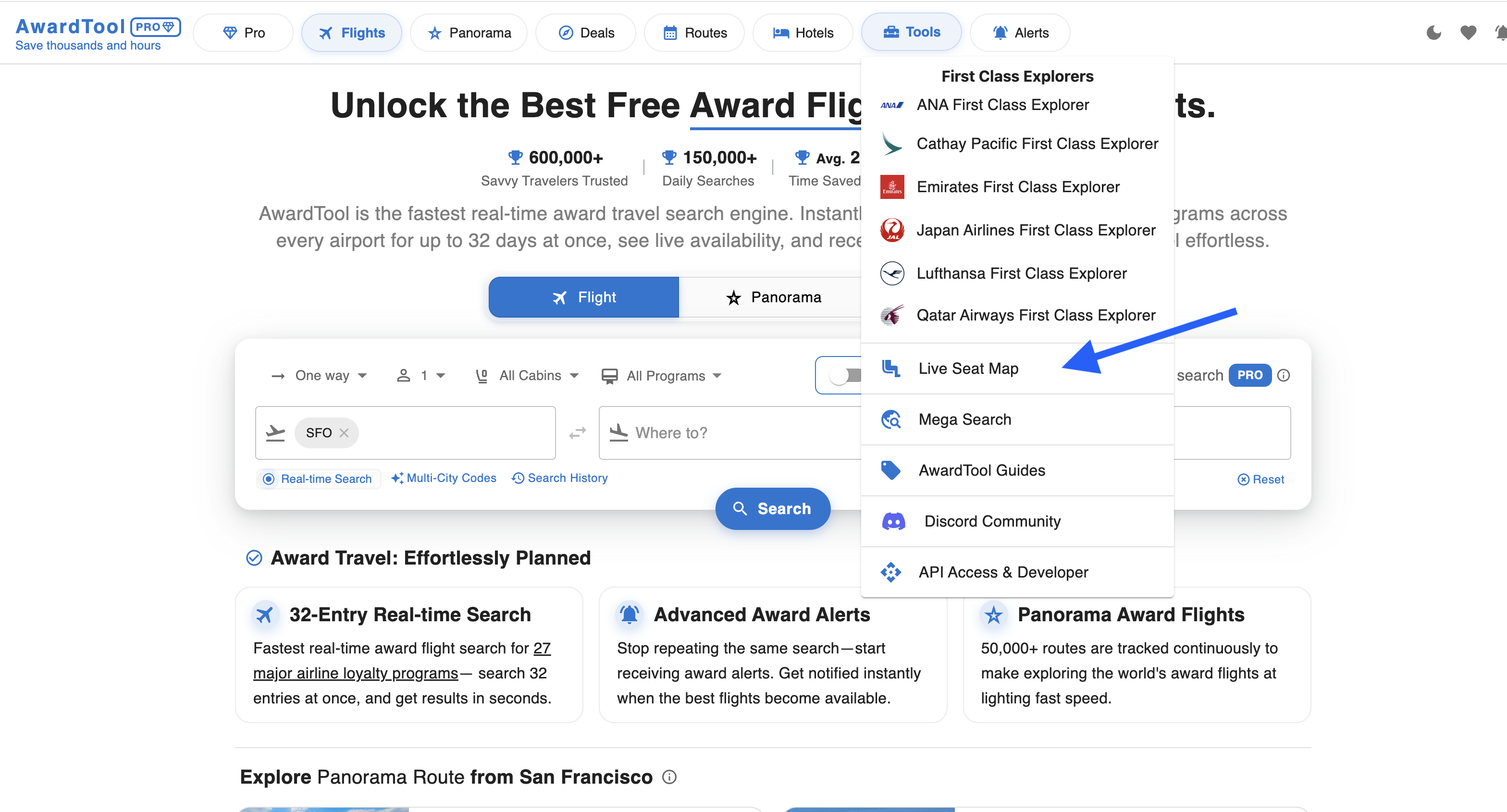
Step 2: Enter Your Flight Details
You will be taken to the Live Seat Map interface. To retrieve the exact seat map for your flight, you need to input the following specific flight details into the form on the left side of the screen:
- Departure Airport (e.g., EWR)
- Arrival Airport (e.g., LHR)
- Date of the flight
- Airline (e.g., United Airlines)
- Cabin Class (e.g., Business, Economy)
- Flight Number (e.g., 122)
Step 3: Search and Explore
Once you have filled in all the required fields, click the blue Search button. The live seat map will generate on the right side of your screen.
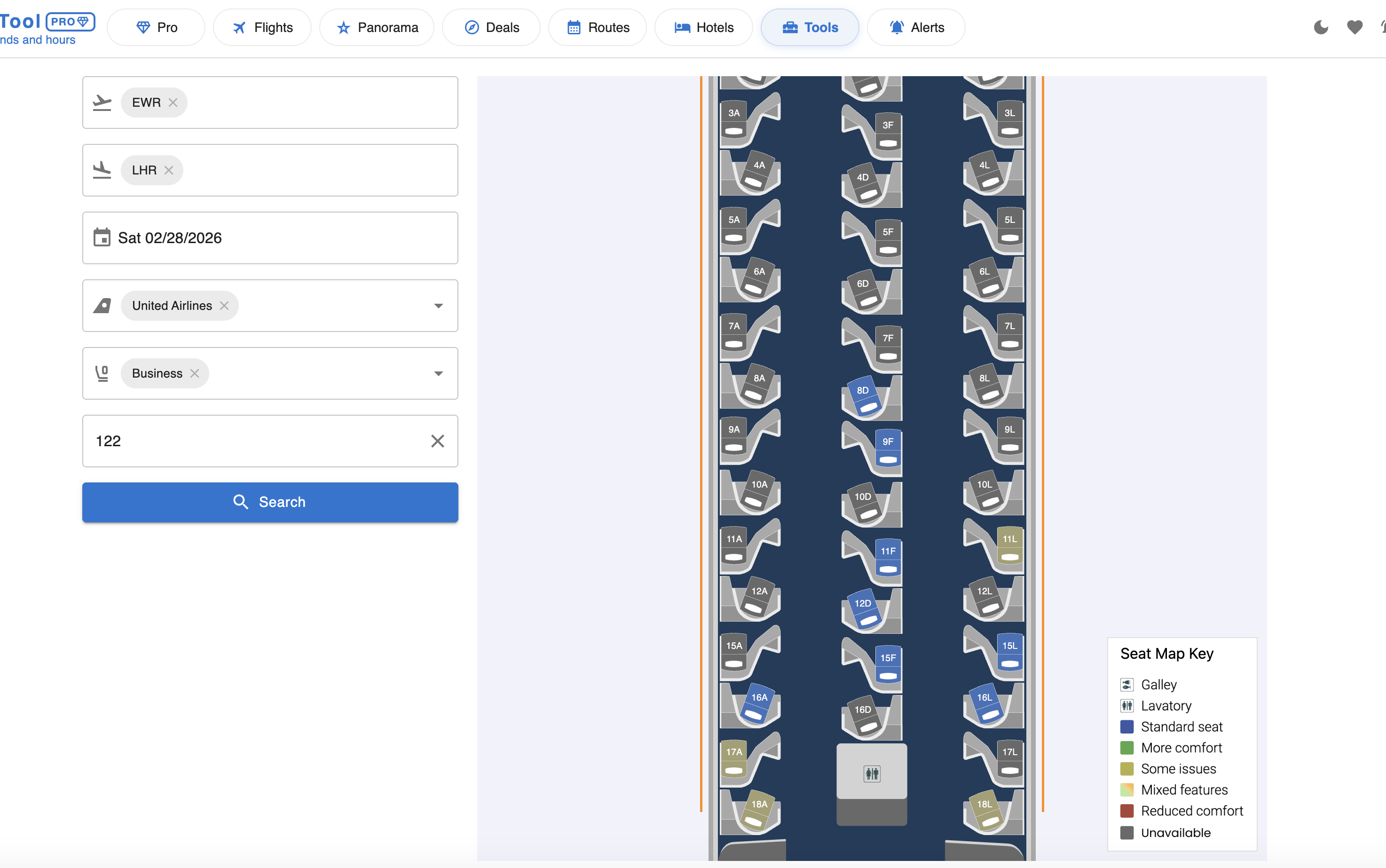
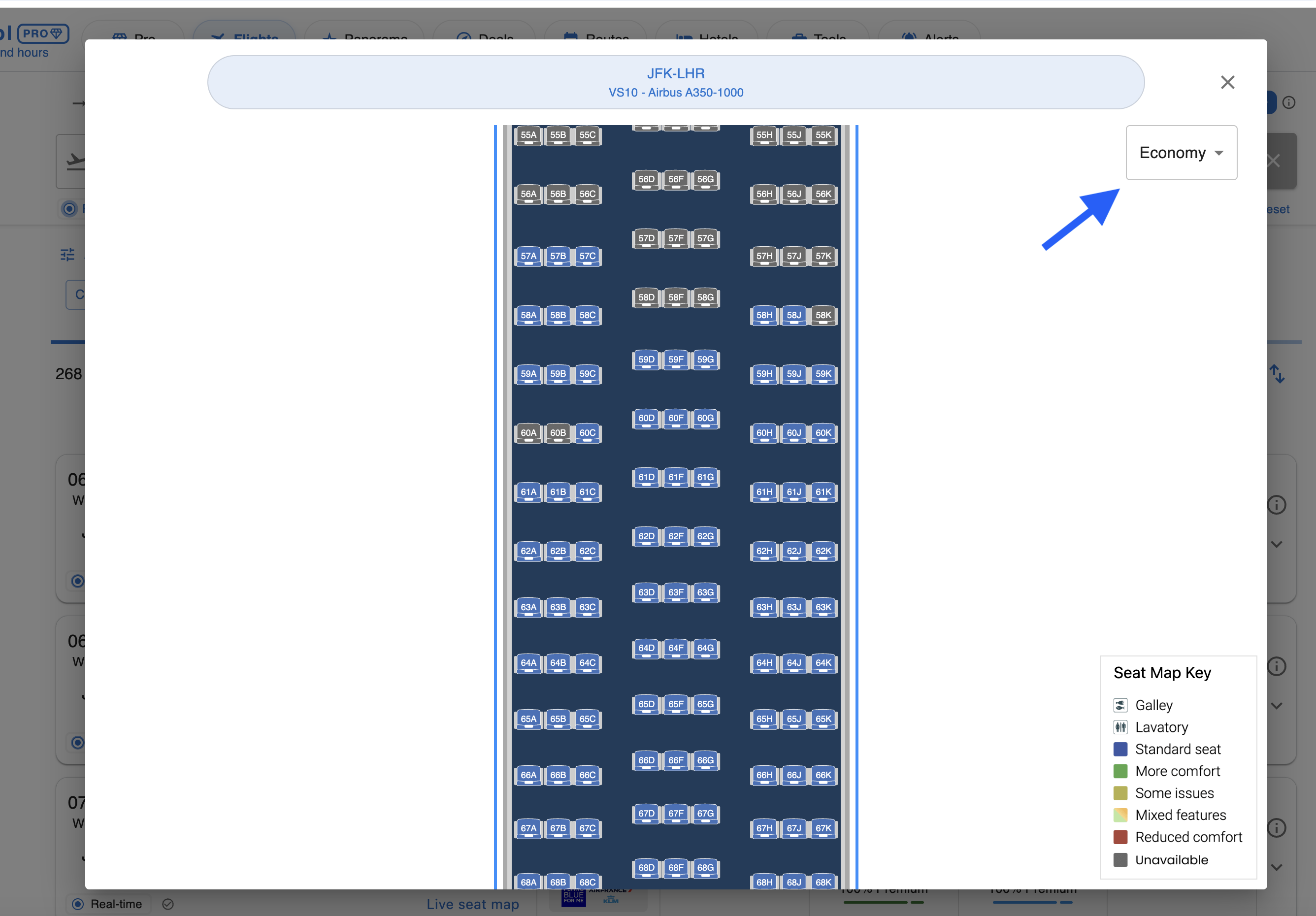
Pro Tip: Use the Seat Map Key located at the bottom right of the map to understand the color coding (e.g., Blue for Standard seats, Green for More comfort, Grey for Unavailable, etc.) and to locate amenities like galleys and lavatories.
Method 2: Accessing from Search Results (Fastest Way)
You don't need to manually enter flight details if you are already browsing award flights! We have integrated the Live Seat Map directly into the search results for your convenience.
Finding the Seat Map Link
Depending on how you prefer to view your search results, the link will be located in slightly different spots:
- In Default / Card Views: Look for the “Live seat map” text link directly under the flight duration and routing information.
- In List / Table View: Look for the small seat map icon located under the “Map” column next to the available seats.
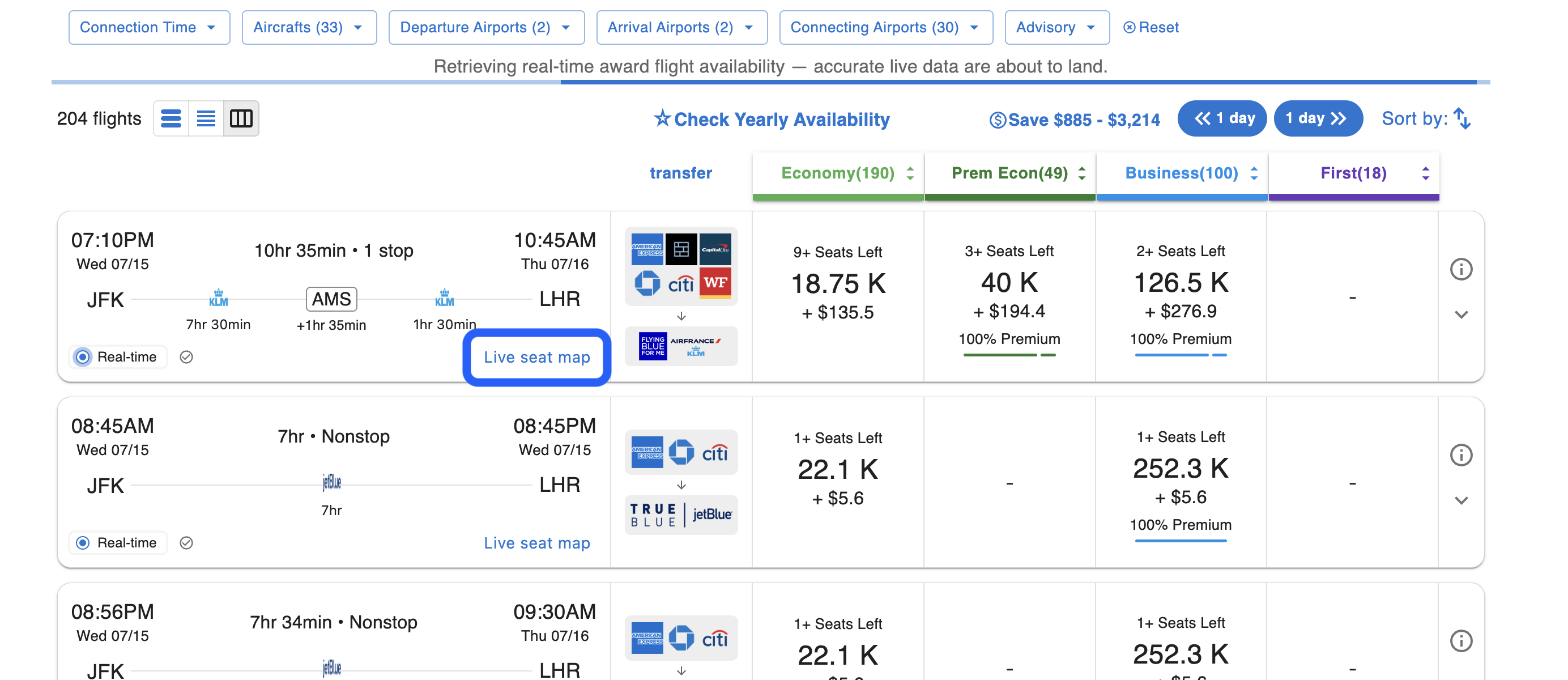
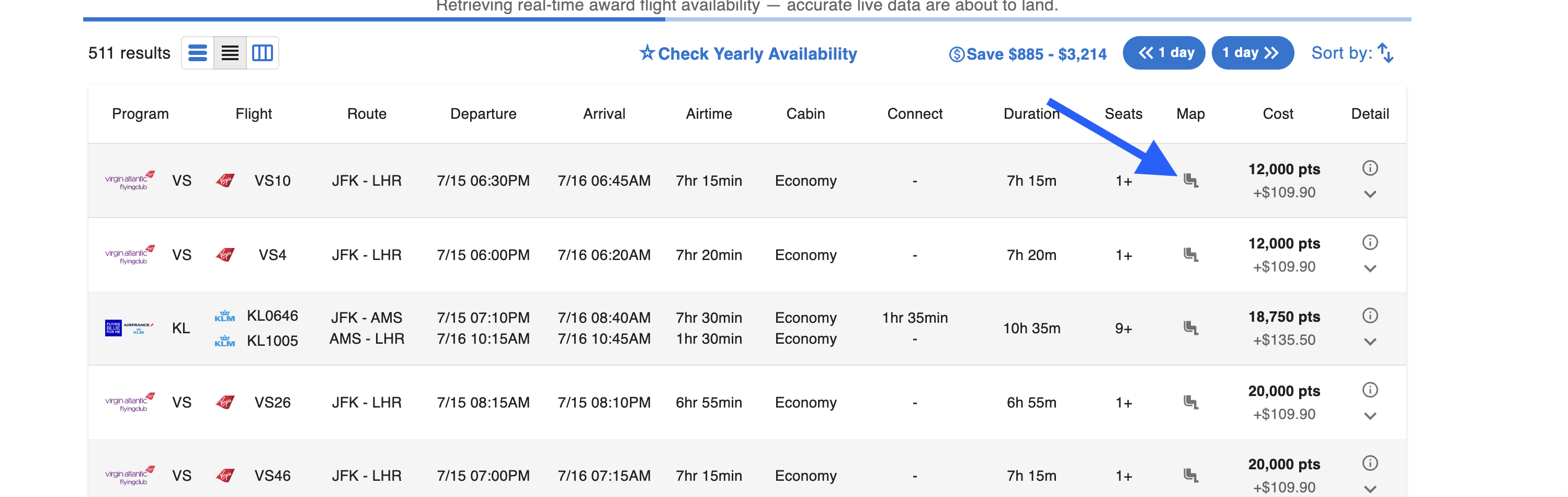
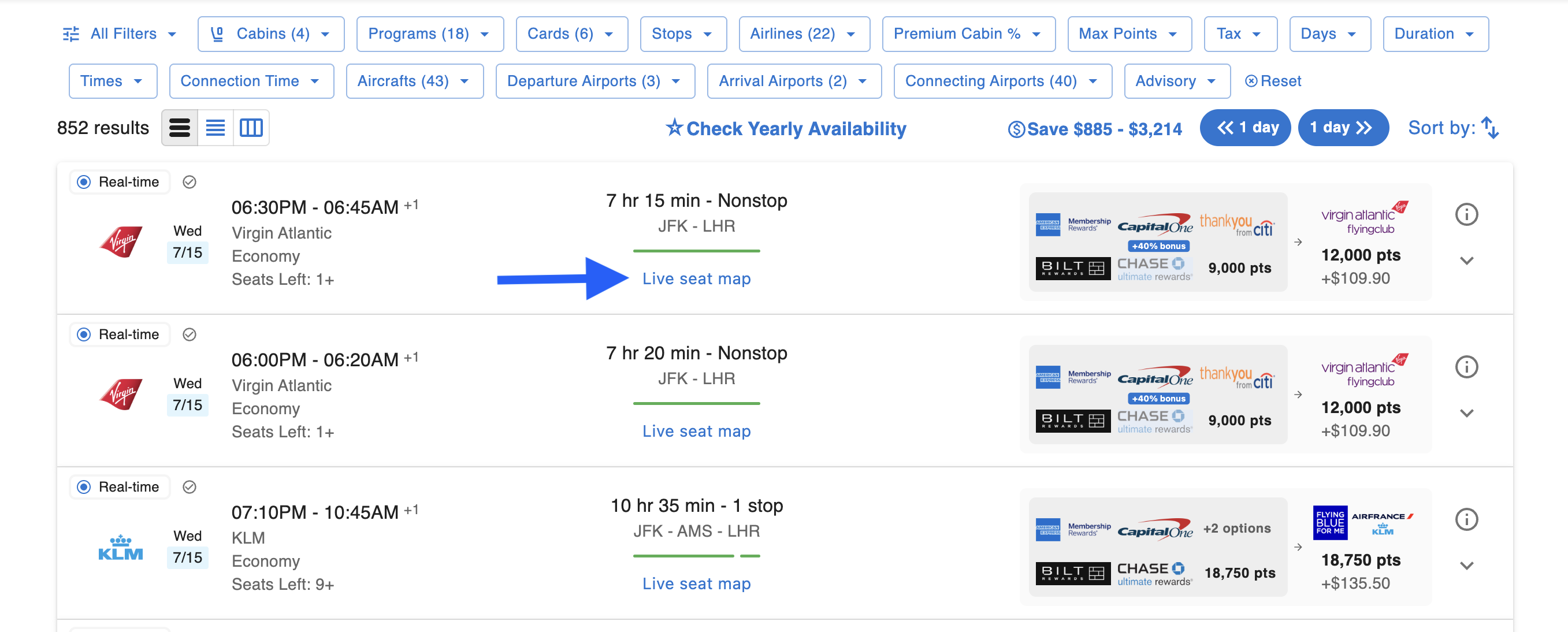
Viewing the Map
Clicking the “Live seat map” link or icon will instantly open a pop-up window displaying the live map for that specific flight.
- Route & Aircraft: The top of the window will display the route and the exact aircraft model (e.g., VS10 – Airbus A350-1000).
- Multiple Cabins: If the flight has multiple cabins available, you can use the Cabin Dropdown in the top right corner of the pop-up to switch between Economy, Premium Economy, Business, or First Class layouts.
Happy hunting, and enjoy the perfect seat on your next award flight!
Need Help?
Contact support at team@awardtool.com